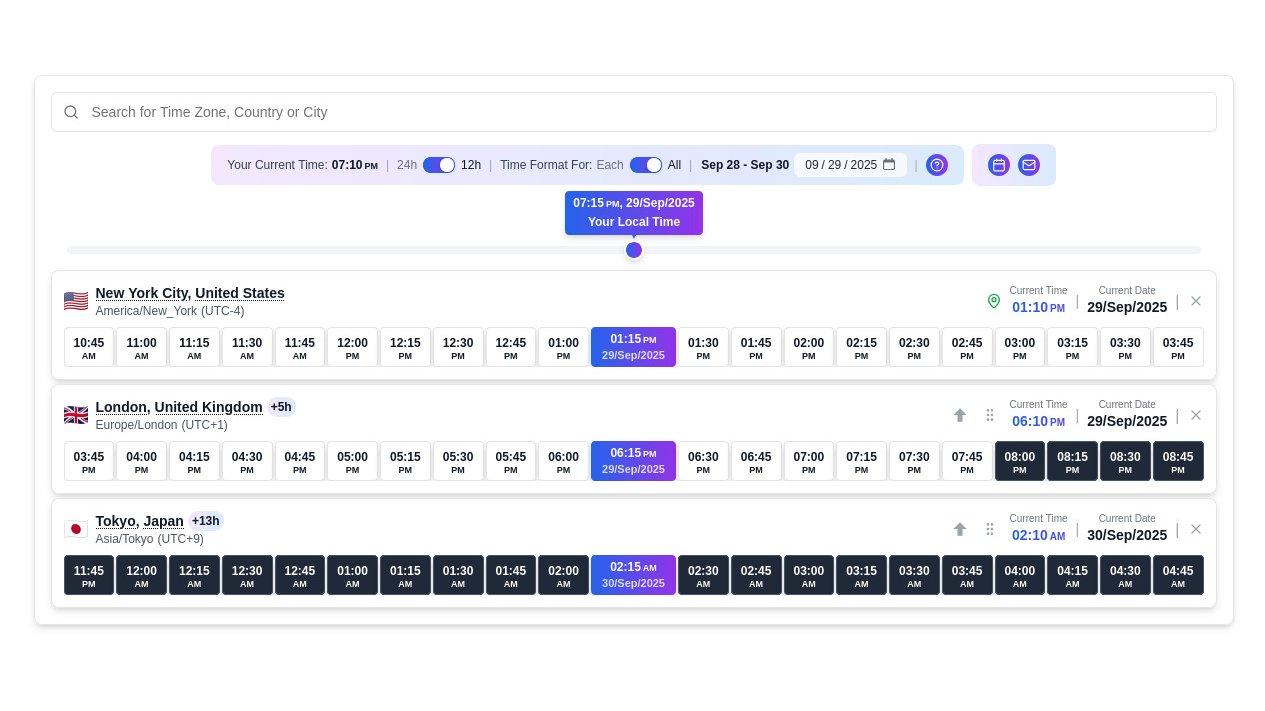
TimeSyncer is an online time zone converter that helps you compare global times, plan meetings across countries, and export schedules to calendars with ease.
TimeSyncer is an online tool for comparing time across different time zones. It lets you instantly check the current time in any city around the world, conveniently plan meetings, and visually view schedules across multiple countries at once.
Key Features:
🔎 Search and add cities/zones — enter a country or city name, and the system will instantly find its time zone.
🕑 Set a base time zone — define the main zone that all others will be calculated against.
⏳ Time slider — drag it forward/backward to see time alignment across zones.
⌚ Time formats — switch between 12-hour and 24-hour formats (globally or per zone).
📅 Export and integration — add events to Google, Outlook, Apple, or Yahoo Calendar, or send schedules via email.
🌍 DST (Daylight Saving Time) — automatic adjustment for seasonal time changes.
Numbers / Scale:
Supports 240+ countries and thousands of cities.
Flexible zone management (drag & drop, removal, base zone selection).
Advantages:
Minimizes mistakes during planning.
Handles automatic calculations.
Visually shows nighttime (with dimmed tiles).
Allows exporting events to calendars.
Who is this tool for?
TimeSyncer is useful for:
👥 People scheduling meetings with participants from different countries.
🧑💻 Remote team managers.
🎤 Speakers and organizers of webinars/conferences.
🏢 Employees of international companies coordinating with global offices.
🌐 Freelancers working with overseas clients.
Anyone needing to synchronize time across locations.
👉 Time Zone Converter
How to Use TimeSyncer (Step by Step)
Open the tool page (Time Zone Converter).
Add time zones / cities:
Set the base zone: click the “↑” arrow next to the desired city.
Reorder zones: drag and drop rows (except the base).
Remove extra zones: click the “X” next to a zone.
Use the time slider:
Choose a time format:
Plan ahead:
Export to calendar or email:
Google, Outlook, Apple, Yahoo Calendar.
Email template with all time zones included.
Save your settings: TimeSyncer automatically remembers your zones in the browser.
Unique Features of TimeSyncer
🎚 Interactive Time Slider
What it does: The time slider lets you “scroll” the day forward or backward and instantly see the corresponding local times across all selected zones. The slider works in 15-minute increments, making it precise enough for planning meetings with unusual start times (e.g., 10:15 or 14:45).
How it looks in the UI: The slider is located under the zone list and/or under the hourly tiles. As you drag it, times in each row update synchronously. Indicators such as “+3h / −5h” appear next to each zone, showing differences relative to the base zone.
When to Use
Quick overview — find a time slot when all zones fall within working hours.
Pick a slot that minimizes nighttime hours for participants.
Check date changes (e.g., when planning across different calendar days).
Tips:
For fine-tuning, lock the slider to 15-minute intervals and check the hourly tiles simultaneously.
Set as the base zone the one you want to calculate from (e.g., the organizer’s zone) — this shifts the context of all displayed times.
⏱ Automatic DST Adjustment (Daylight Saving Time)
What it does: TimeSyncer automatically applies daylight saving time rules for each zone. When selecting a future date, you’ll get correct local times that account for clock shifts. The system syncs with the time zone database and shows the exact UTC offset for each city.
How to check in the UI: When selecting a date in the calendar or moving the slider across a DST change, the tool displays correct times and warns about the offset shift.
When it’s critical:
Tips:
When planning months in advance, always recheck the date in the tool — it will reveal whether a DST shift occurs.
If your audience includes countries with non-standard DST rules, add them to the list and verify results manually.
🌙 Nighttime Indication (Dark Tiles)
What it does: Under the hourly tiles, nighttime hours are shown dimmed — instantly showing which zones will be in night hours at the proposed time. This helps avoid scheduling unnecessarily early or late slots for participants.
How it looks: Darker hourly “tiles” on the 24-hour grid; when moving the slider, shadows update accordingly.
When to use: While selecting a convenient “window” for a global audience (to avoid scheduling at 2:00 AM for someone).
Tips:
Use the dimming as a visual filter when picking time: aim for the slot with the fewest dark tiles.
Remember: “night” is a general indicator, but local habits (e.g., shifted work schedules) may differ — always confirm with participants.
🖥 Flexible Time Formats (12h/24h, Each / All)
What it does: TimeSyncer allows switching between 12-hour and 24-hour formats. Two options are available:
How to use: Format controls are usually next to the clock (12h / 24h toggle) + a selector for “Each / All.”
When important:
If participants follow different cultural conventions (e.g., US — 12-hour, Europe — 24-hour).
When preparing materials/files with times for distribution.
Tips:
For public invitations, choose the format most understandable to your main audience (often 24h for international teams).
Use Each when sending an internal list of times to multiple offices so everyone sees their familiar format.
📤 Calendar Export (Google, Outlook, Apple, Yahoo)
What it does: With one click, export an event to the chosen calendar (Google Calendar, Outlook, Apple Calendar, Yahoo, etc.). TimeSyncer inserts all time details (offset, zone designation) into the event to reduce mistakes.
How it works in the UI: “Export” button/menu or calendar icons. Selecting a service opens an event creation window or downloads an .ics file for import.
When to use: When adding a meeting to your calendar and automatically passing the correct time context to all participants.
Tips & cautions:
After exporting, double-check in your calendar app that the event shows the correct time zone — some clients may auto-convert times to the user’s local zone on import.
For group distribution, it’s best to use .ics with an explicit time zone specified in metadata.
📧 Email Sharing — Ready-to-Use Templates for Participants
What it does: TimeSyncer generates a preformatted email with local times for all selected zones. You can share it via Gmail, Outlook, Apple Mail, Thunderbird, etc. The email includes a clear table/list with cities, local times, and zones.
How it looks in the UI: “Share via Email” button or mail icon, which opens your client with a prepared draft.
Example of a simple distribution template:
Subject: Webinar Invitation — [Title] — [Date]
Body: Hello!
The webinar will take place: 01.01.2026, 10:00 AM (New York, EST)
Local times:
Example Local Times in Email
New York (ET): 10:00 AM
London (UK): 15:00
Broadcast link: [link]
Please check your local time and let us know if there are any conflicts.
Tip: Always review the generated email before mass distribution — sometimes mail clients may alter formatting.
🔍 Global Search & Autocomplete (195+ countries, thousands of cities)
What it does: TimeSyncer’s search indexes 195+ countries and thousands of cities, providing instant autocomplete suggestions while typing (searchable by country, city, or even time zone name).
How to use effectively: Enter keywords (city, country) — the system will suggest options. If needed, add a region (e.g., “Australia Melbourne”) to avoid ambiguity.
Tips:
If a city has multiple matches (e.g., Springfield), choose the exact city/state from the suggestion list.
Corporate users with large location lists can use Favorites / History for quick access.
🔄 Dynamic Zone Reordering (Drag & Drop)
What it does: Zone rows can be rearranged for logical organization (e.g., grouping by team or priority). The base (primary) zone is fixed — you can’t move it until another is set as base. On touch devices, long-press is supported for moving.
When useful: When you regularly use the same set of cities (e.g., your office, client location, local branch) and want them in a specific order.
Tips: Arrange zones from most to least important, or group by region for quicker visual comparison.
💾 Saved Settings — Automatic Restoration on Return
What it does: Your selected time zones, order, and base zone are stored locally in your browser. When you return, TimeSyncer automatically restores your last settings. A separate Favorites section allows saving important locations for quick access.
Security/Privacy tips: Settings are saved in the browser’s local storage. If working on a shared computer, clear local data or use incognito mode.
Where to see it: The Favorites page displays saved locations, while the Time Zone Converter automatically reloads your last zones upon return.
Quick Workflow Summary
Select a base zone (↑ arrow) — this sets the context for all others.
Add required cities via global search.
Adjust the slider and check night tiles — find a “white window” of time.
Choose a time format (Each / All) based on your audience.
Export the event to a calendar and/or send an email with local times.
When to Use TimeSyncer
TimeSyncer is a universal tool that helps avoid confusion with time in any situation requiring synchronization across multiple locations. Below are detailed recommendations for six common use cases: what to do, which features to use, a checklist before sending invites, and common pitfalls.
Online Conferences
When to apply: Large-scale events with multiple speakers and participants from different countries (public conferences, multi-session formats, panel discussions).
Step-by-step in TimeSyncer:
Build a working set of zones: add all cities/countries of speakers and key audiences.
Assign a base zone — usually the organizer’s time or the main conference hub.
Use the time slider to find several time “windows” when most zones are not in night hours.
Check DST for session dates, especially if the event spans multiple days.
Recreate the schedule structure: set times for each session, export to calendar (.ics), or prepare an email template with local times.
Add organizers’/admins’ cities to Favorites for quick access.
Checklist before distribution:
All key speakers included.
Base zone is correct.
DST checked.
Optimal slots selected via slider.
.ics file created and email template with local times prepared.
Email Content & Best Practices
Pitfalls / Tips:
For large conferences, consider multiple time options and propose alternative sessions for regions with poor overlap.
Always add the time zone in invitations in a full format, e.g., “10:00 AM (New York, EST/EDT, UTC−5/−4)” to reduce confusion.
Webinars
When to apply: Single-session educational events or presentations where it’s important for the audience to join at a specific time.
Step-by-step in TimeSyncer:
Open the link or create a new set of zones with the audience’s cities.
Set the webinar time according to the organizer’s city (base zone).
Move the slider to the correct date/time and lock it.
Click “Export” → choose Google/Outlook/Apple/Yahoo or download .ics.
Generate an email template via “Share via Email” and add the recording link (if available).
Checklist before sending:
Date/time shown in all local zones.
Each/All time format switch adjusted to the audience.
.ics includes the correct time zone.
Email includes instructions: “open the link → find your city.”
Tips:
If targeting an audience from different time conventions, use the 24h format to avoid AM/PM errors.
Include a TimeSyncer link in the email so participants can quickly confirm their local time.
Meetings & Calls Across Countries
When to apply: Weekly standups, synchronous meetings with distributed teams, ad-hoc calls.
Step-by-step in TimeSyncer:
Save the list of offices/participants in Favorites for quick access.
At planning time, open the set and set the base zone (e.g., manager’s zone).
Use drag & drop to order zones by priority (most → least important).
Scroll the slider to find a stable time slot with the fewest night tiles.
For recurring meetings, confirm that DST does not shift the schedule across repetitions.
Export the event to a calendar and add a short instruction in the description (include the TimeSyncer link).
Checklist before the meeting:
Recurring events checked for DST impact.
All participants added to the invite.
Everyone can see their local time in the event description.
Tips:
Set “stable” times for recurring meetings (e.g., 4th Monday, 15:00 base) to avoid constant changes.
If someone travels frequently, confirm their local time before important meetings.
Planning International Negotiations
When to apply: Negotiations with clients, partners, legal/contractual meetings where time accuracy is critical.
Step-by-step in TimeSyncer:
Add all involved parties (cities of key contacts).
Set the base zone according to the initiating side, or use an agreed “neutral” zone.
Use the slider to find the optimal time with minimal nighttime overlap.
Before final confirmation, generate an email template with a fixed time and .ics file.
In the contract/official letter, specify the time in full: local time + UTC offset + time zone name.
Checklist for negotiations:
Time zones listed with UTC offset.
Alternative times proposed.
.ics created and tested in both calendars.
TimeSyncer link included for self-verification.
Tips
In important negotiations, it’s recommended to include in the email a phrase like:
“The time has been confirmed with all participants — check via TimeSyncer: [link]”.
When drafting official documents, always include the UTC offset and, if necessary, the time zone abbreviation (e.g., CET/CEST).
Coordination Between Offices
When to apply: Synchronizing schedules across branches, aligning working hours, planning inter-departmental meetings.
Step-by-step in TimeSyncer:
Create a standard zone set called “Company Offices” and save it in Favorites.
Use drag & drop to arrange offices in a convenient order (e.g., regional hub at the top).
Use the slider to find “working overlaps” — time periods when all offices are open.
For long-term planning, check DST and download .ics for key meetings.
Share the office set link with HR/ops so employees can quickly check times.
Checklist:
Standard office set saved in Favorites.
Corporate time guidelines available (e.g., “shared hours 13:00–16:00 UTC”).
All local managers have confirmed their working hours.
Tips:
Create an internal guide: “How to check time in our office network” with a direct TimeSyncer link.
For HR/recruiting, add notes on local holidays and non-working days.
Scheduling, Deadlines, and Time Control
When to apply: Setting deadlines, planning releases, coordinating timelines between teams in different time zones.
Step-by-step in TimeSyncer:
Add all local points (offices, responsible persons) into the set.
Set the base zone according to the side the external client/customer will “trust.”
Scroll the slider to the deadline, check local times, and save a screenshot or export .ics as proof.
For cross-regional releases, create multiple alternative deadlines for zones with non-overlapping working hours.
Document time references in the task tracker with a TimeSyncer link to avoid disputes.
Deadline Checklist:
Deadline stated with time zone and UTC offset.
All responsible parties received .ics.
DST verified for the period between start and deadline.
TimeSyncer link/screenshot saved as proof.
Tips:
For final releases, use “buffer windows” — set the deadline earlier for one side to allow for contingencies.
In cases where precision is critical (legal, finance), add UTC time in the meeting description as an extra safeguard.
Universal Short Checklist (for any situation)
Add all required cities/zones.
Assign the correct base zone.
Scroll the slider — find a “white” (overlap) window.
Check DST for the date(s).
Export .ics and test it in the target calendar.
Send an email with local times + TimeSyncer link.
Save the zone set in Favorites for reuse.
Example of Use
You received this link:
👉 New York City
The webinar will take place on 01.01.2026 (New York time). You are in London.
Open the link — New York is already in the list.
Add London (via search).
Make sure New York is the base zone (arrow “↑”).
Select the date — January 1, 2026.
Enter the webinar time (for example, 10:00 AM New York).
Look at the row for London — you’ll see your local time (15:00 / 3:00 PM).
Write it down — that’s your connection time.
Optional: Add London to Favorites (♥) to save the settings.
Helpful Tips & Precautions
✅ Always double-check the date — daylight saving time shifts may apply.
✅ Pay attention to the time format (AM/PM vs 24h).
✅ Consider participants’ working hours and avoid late-night slots.
✅ Have a backup time in case someone can’t make the first slot.
✅ Send participants a reminder with their exact local time before the event.
✅ Test the calendar export — sometimes systems adjust time zones incorrectly.
✅ If someone is unfamiliar with TimeSyncer, provide a short how-to guide.
✅ Be especially careful with countries that use non-standard offsets (+30 minutes, etc.).
📌 TimeSyncer is a simple and effective tool for anyone who wants to avoid time zone confusion and schedule events without mistakes.